Cloud and Systems
Discover the ten PowerShell commands that can be really useful to keep your AD DS Server and its objects (users, computers, groups) under control, saving time in maintenance while not losing any control or scope.
Configuring and managing an IT infrastructure is a challenging task where the technical team must invest significant effort, with hundreds of hours dedicated to proper planning and configuration, and hundreds, if not thousands, of hours of maintenance, including tasks of various kinds.
Among all these tasks, managing the Active Directory Domain Services (AD DS) infrastructure should always be one of our priorities, as it is one of the most sensitive points within our facilities.
Poor security management of this core service can compromise the security of the entire company, which is why we must always keep an eye on the AD DS status.
In this article, we will discuss some PowerShell commands that will help us check the status of various elements in our Active Directory to perform this monitoring quickly and efficiently.
We should note that these are not all the commands needed for comprehensive infrastructure control, but they allow us to start this task, gradually adding additional commands or even preparing scripts to automate these checks.
On the other hand, it should also be clear that in this article we are discussing monitoring, auditing, or a simple check; configurations are discussed, at least in an introductory way, in another article about AD DS.
NOTE: The commands and scripts shown below have been tested on Windows Server 2022 and may not work the same way on other versions of Windows. This is because there are different versions of PowerShell. To identify which version your system runs, you can execute one of the following commands in a Windows PowerShell window: “Get-Host” or “$PSVersionTable” or “$PSVersionTable.PSVersion”.
PowerShell Commands to Audit the Security of Your AD DS Server:
The first thing to mention is that we will discuss checking various objects within our AD DS infrastructure:
- Users.
- Computers.
Although we will address these AD DS elements, we will likely focus more on users, as they are the most likely to compromise company security.
NOTE: Before working with PowerShell to manage Active Directory Domain Services (AD DS), we must import the module. To do this, execute the following command from a PowerShell console with administrator permissions: “Import-Module ActiveDirectory”.
The queries we will perform are as follows:
- List users from a specific OU.
- List expired user accounts.
- List disabled user accounts.
- List locked-out user accounts.
- List inactive users.
- List users whose passwords never expire.
- List users with weak passwords.
- List new users.
- List inactive domain computers.
- List disabled computers.
1. List Users from a Specific OU:
Here we show how to make a list of users belonging to a specific Organizational Unit (OU), so we know which users are in that OU and benefit from the GPOs applied to it.
We can execute it in several ways. The most convenient method, allowing for quick queries, is to use a variable to pass the Organizational Unit.
For example, suppose we are working with the domain “pruebasnacho.com” and want to know the users in the “Zaragoza” OU within “Delegaciones”. The variable would be declared as:
$OU = ‘ou=Zaragoza,ou=Delegaciones,dc=pruebasnacho,dc=com’
Then we can execute the following command:
Get-ADUser -Filter * -SearchBase $OU | Select-object Name,DistinguishedName,UserPrincipalName,Enabled,SID | Export-CSV “C:\Temp\UsersOU1.CSV” –NoTypeInformation
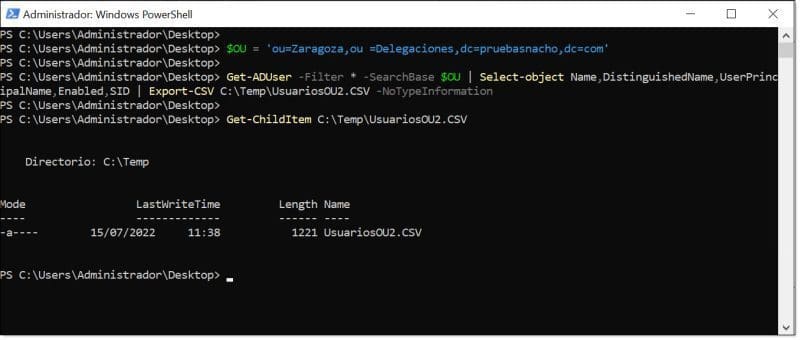
List of users from a specific OU in our AD DS Server using PowerShell
The second, slightly less “clean” way is to directly insert the OU data into the command, like this:
Get-ADUser -Filter * -SearchBase ‘ou=Zaragoza,ou=Delegaciones,dc=pruebasnacho,dc=com’ | Select-object Name,DistinguishedName,UserPrincipalName,Enabled,SID | Export-CSV “C:\Temp\UsersOU1.CSV” –NoTypeInformation
Next, let’s explain the various options we are using:
- Get-ADUser: Queries AD DS users.
- SearchBase: Changes the query scope to show only users of interest, in this case, those in a specific OU.
- Select-object: Allows selection of which fields to display in the query. To know available fields, it is recommended to run the original command without modifiers: “Get-ADUser -Filter *”.
- Export-CSV: Exports the information to a CSV file, which can be used by scripts or opened in Excel.
- NoTypeInformation: Removes the first line of the CSV file, which is informational and can interfere with other scripts.
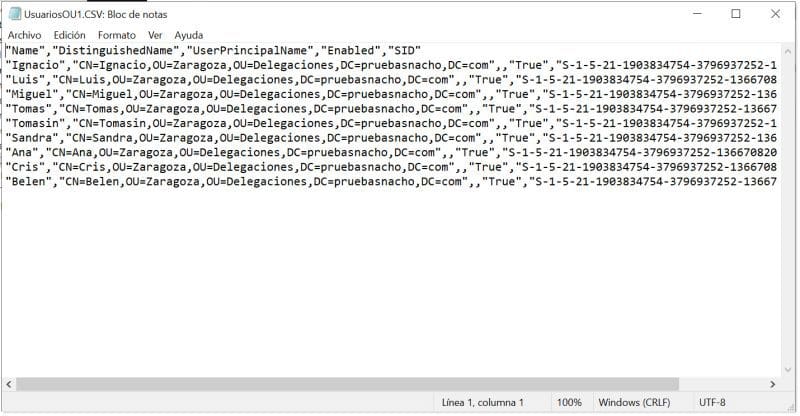
Example of CSV output file after executing PowerShell command in our AD DS Server
Similarly, we could get all users from all OUs, or in other words, from the entire domain by removing “SearchBase”, like this:
Get-ADUser -Filter * | Select-object Name,DistinguishedName,UserPrincipalName,Enabled,SID | Export-CSV “C:\Temp\UsersOU1.CSV” –NoTypeInformation
2. List Expired User Accounts:
Another thing to check is which users in the directory have expired accounts. That is, accounts that should no longer exist because their allowed time has passed.
To run this query, we will use the “Search-ADAccount” command since this command, unlike “Get-ADUser,” allows querying the account expiration date.
The command looks like this:
Search-ADAccount -AccountExpired | Select-Object Name,DistinguishedName,UserPrincipalName,Enabled,SID,AccountExpirationDate
This case is simpler since we have fewer modifiers and parameters to consider:
- Search-ADAccount: Displays Active Directory accounts that meet certain conditions.
- AccountExpired: Condition for expired accounts. You can also check manually via the “Account” tab in a user’s properties under “Account expires”.
- Select-Object: Allows selecting which fields to display. It is recommended to run the command without modifiers to see all available fields. In this case, including Name, account, SID, and “AccountExpirationDate” is recommended.
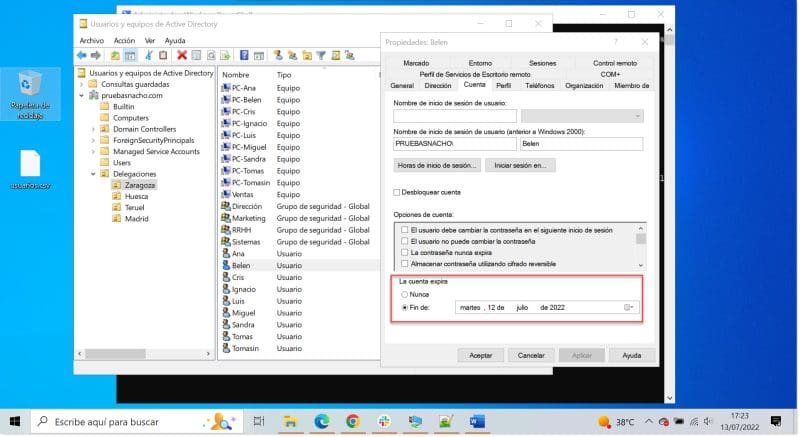
The ‘Account expires’ field in the ‘Account’ tab of our AD DS Server
We can also add the “UsersOnly” modifier after expiration to list only users.
Usually, I would use “Export-CSV” to save the query results for review of changes, errors, etc. In this case, and for some following examples, I won’t use it so that we can display the execution directly in screenshots.
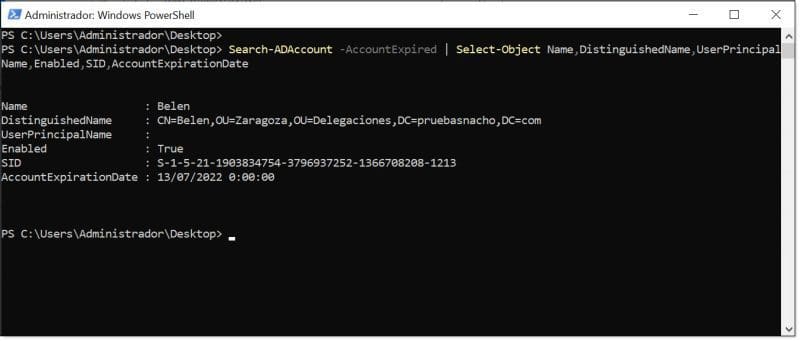
List of expired user accounts in our AD DS Server using PowerShell
3. List Disabled User Accounts:
Another point to audit is the disabled accounts. These accounts are typically users who have left the company, were dismissed, or are no longer used. They are generally not dangerous since they prevent login, but should be removed for added security.
Disabled accounts are listed using the “Get-ADUser” command by checking that the “Enabled” property is set to false, requiring no additional parameters, as shown here:
Get-ADUser -Filter {(Enabled -eq $False)} | Select-Object Name,DistinguishedName,UserPrincipalName,Enabled,SID,LastLogon
We only need to use “Select-Object” to choose the fields to display. Again, to see available fields, run the original command without modifiers. Including “LastLogon” can also be helpful to see the last login time.
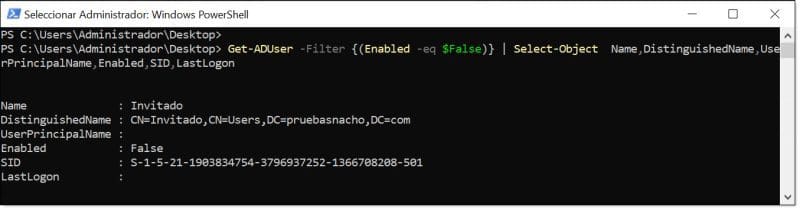
List of disabled user accounts in our AD DS Server using PowerShell
We could also manually check a specific user using the Get-ADUser command:
Get-ADUser <username> | select Name,DistinguishedName,UserPrincipalName,Enabled,SID,LastLogon
Where <username> is the user to check.
For example, to check user “Sandra”, run:
Get-ADUser Sandra | select Name,DistinguishedName,UserPrincipalName,Enabled,SID,LastLogon
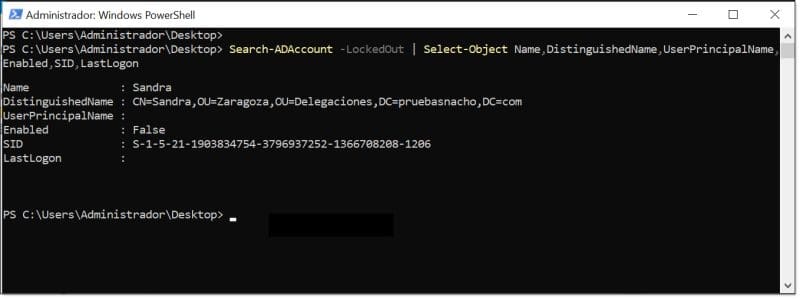
Checking if a user account in our AD DS Server is disabled
4. List Locked User Accounts:
Another point to check is accounts locked due to exceeding a certain number of failed login attempts. This can be an indicator of malicious users trying to gain access by guessing passwords, although it is often just users who repeatedly mistype or forget their password.
The command is straightforward and, again, uses “Search-ADAccount”.
Search-ADAccount -LockedOut | Select-Object Name,DistinguishedName,UserPrincipalName,Enabled,SID,LastLogon
The following modifiers can be used:
- LockedOut: selects only accounts that are locked.
- Export-CSV: export to a file for later processing.
- UsersOnly: display only locked users.
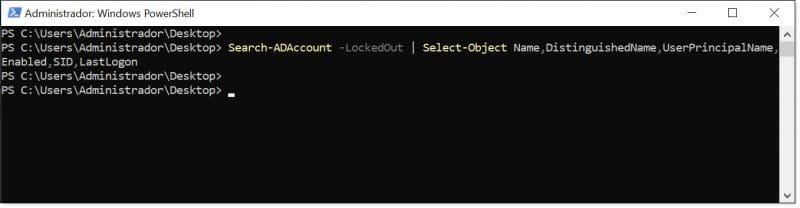
List of locked user accounts in our AD DS Server using PowerShell
5. List Inactive Users:
In this case, we look for users who haven’t logged in for a period of time, for example 90 days, which are considered inactive users in the domain.
The query uses the “Search-ADAccount” command:
Search-ADAccount –AccountInActive –TimeSpan 90:00:00:00 | Select-Object Name,DistinguishedName,SID,LastLogon
Where:
- AccountInActive: lists inactive accounts.
- TimeSpan: period after which a user is considered inactive; in this case 90 days “90:00:00:00”.
- Select-Object: filters the properties to display. Here, Name, DistinguishedName, SID, and LastLogon are shown.
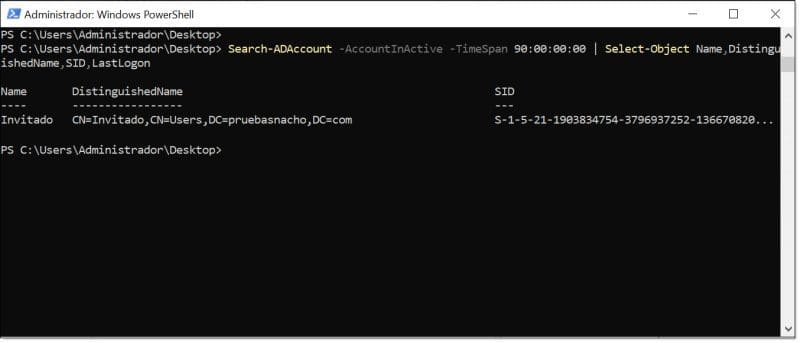
Running the command to find inactive users in our AD DS Server
6. List Users Whose Password Never Expires:
Another key point is monitoring users whose passwords never expire. The password expiration mechanism keeps passwords secure through rotation, preventing users from reusing the same passwords across systems, websites, banks, etc.
The only accounts that should have permanent passwords are service accounts, as expiration could stop the services they run.
To locate other users, we can use the “get-aduser” command with parameters filtering for users whose password does not expire:
get-aduser -filter * -properties PasswordNeverExpires | where { via the “PasswordNeverExpires” option
$_.passwordNeverExpires -eq “true” } | Select-Object Name,DistinguishedName,UserPrincipalName,Enabled,SID
As in previous examples, we display properties “Name,DistinguishedName,UserPrincipalName,Enabled,SID”, but any other can be added. To see all options, run “get-aduser -filter *”.
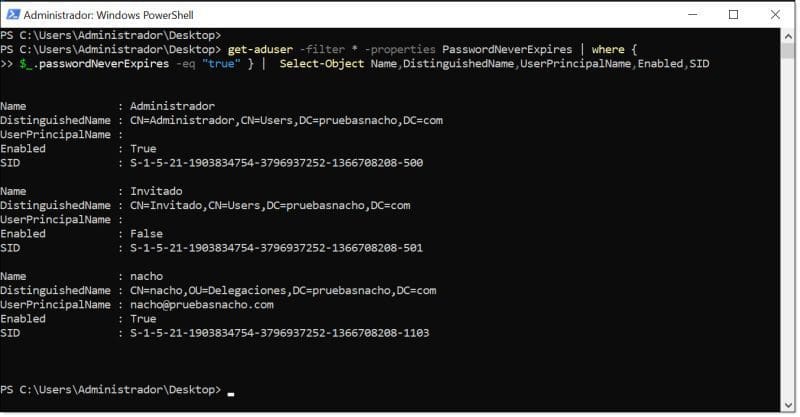
Listing user accounts in our AD DS Server that never expire
7. List Users with Weak Passwords:
One of the biggest mistakes when managing users is allowing users with weak passwords, as they are vulnerable to brute-force attacks, dictionary attacks, etc.
This is solved with strong password policies. In newer versions of Windows Server, these policies are usually enabled by default. For more on Microsoft password policies, see the following link.
However, even with enforced policies, weak passwords may exist for special cases, like executives or privileged users, where exceptions allow overly simple passwords—a practice that should be minimized.
To search for weak passwords, first import the “DSInternals” module:
Install-Module DSInternals
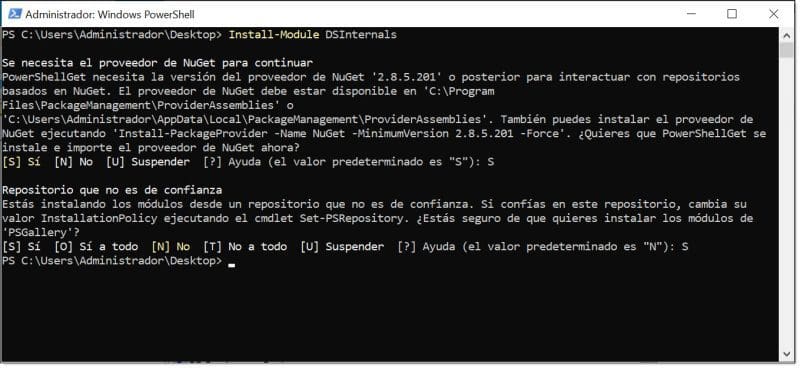
Importing the DSInternals PowerShell module and accepting options
Next, load a password dictionary file. You can use a downloaded one or create your own. If downloading, include names like company or city for relevance.
$Passwords = “C:\Users\Administrator\Desktop\passwords.txt”
Then execute the query command:
Get-ADReplAccount -All -Server ‘<SERVER_WITH_FQDN>’ | Test-PasswordQuality -WeakPasswordsFile $Passwords -IncludeDisabledAccounts
Where:
- <SERVER_WITH_FQDN>: replace with the AD DS server name (DC) with its FQDN, e.g., ‘WIN-Q28KD6B1DN2.pruebasnacho.com’.
- Test-PasswordQuality: tests password quality.
- WeakPasswordsFile: uses the text file loaded previously via the $Passwords variable.
- IncludeDisabledAccounts: includes disabled accounts for a more complete check.
Example:
Get-ADReplAccount -All -Server ‘WIN-Q28KD6B1DN2.pruebasnacho.com’ | Test-PasswordQuality -WeakPasswordsFile $Passwords -IncludeDisabledAccounts
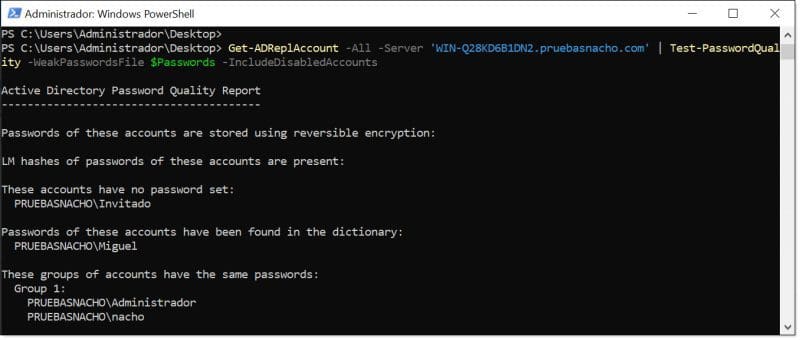
Running the PowerShell query to find weak passwords in AD DS Server
This example uses the script by Adam Bertram.
8. PowerShell Commands to List New Users:
When auditing Active Directory, we should also monitor newly created users and track when a new account is created.
For example, weekly listing of new AD DS users can be compared with IT department records to detect unauthorized account creation.
To search, first create a variable for the user creation timeframe. For instance, for users created in the last 7 days, use “7” with “AddDays”.
Then use “Get-ADUser” with the “whenCreated” parameter to compare against the variable. If the date is greater (-ge), the account is displayed with selected properties.
Example for one day:
$Date = ((Get-Date).AddDays(-1)).Date
Get-ADUser -Filter {whenCreated -ge $Date} -Properties *| Select-Object Name,DistinguishedName,SID,Enabled,whenCreated
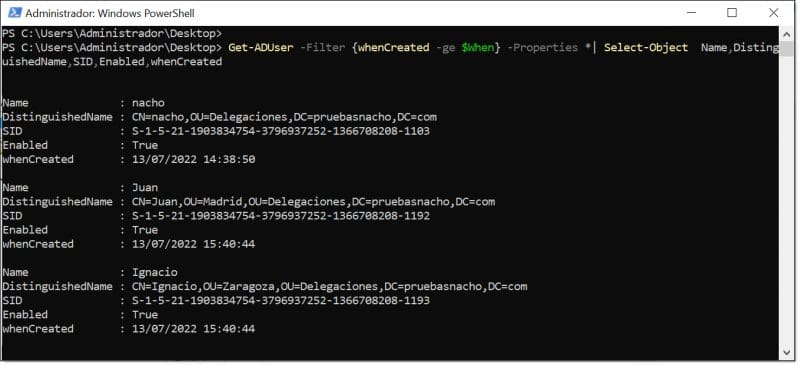
Listing new users in our AD DS Server using PowerShell
9. List Inactive Domain Computers:
Regarding domain-joined computers, we can query to extract and list them for inventory or further processing.
The query uses “Get-ADComputer” to list all computers and servers, filtering relevant properties.
Example:
Get-ADComputer -Filter * -Property * | Select-Object Name,DNSHostName,OperatingSystem,ipv4Address
We chose to display the following properties:
- Name: Computer name as shown in “My PC”.
- DNSHostName: Fully Qualified Domain Name (FQDN).
- OperatingSystem: OS as shown in the object properties.
- ipv4Address: IPv4 address assigned to the computer.
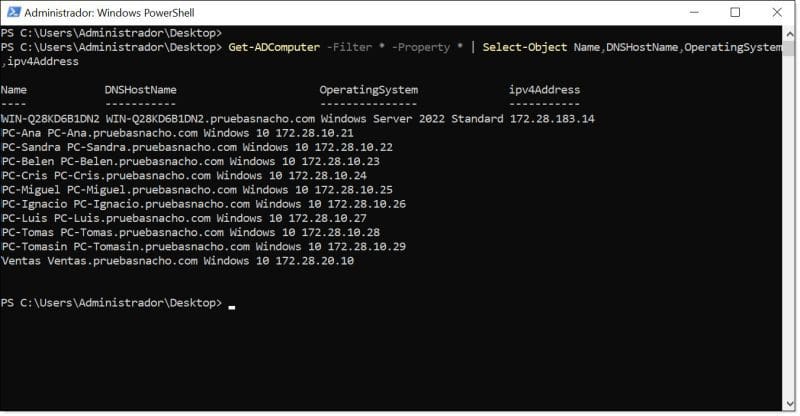
Listing domain-joined computers in AD DS Server using PowerShell
We should also remove inactive computers from the domain, often old PCs not properly decommissioned.
These machines may leave the company without being wiped, potentially creating security risks.
To detect them, use “Get-ADComputer” with a variable for time, similar to the new users query.
Example for 180 days:
$time = (Get-Date).Adddays(-(180))
Get-ADComputer -Filter {LastLogonTimeStamp -lt $time} -Properties Name ,LastLogonDate
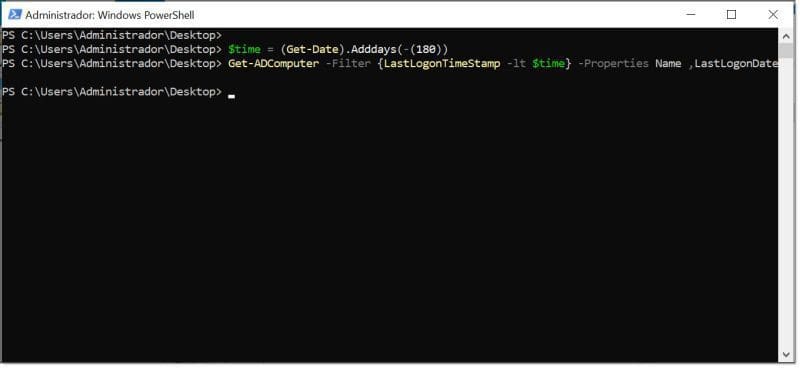
Listing inactive computers in AD DS Server using PowerShell
10. List Disabled Computers:
We should also track disabled computers, as these should ideally be removed.
Query using “Get-ADComputer” filtering where “Enabled” is false:
Get-ADComputer -Filter {(Enabled -eq $False)} | Select-Object Name
Select properties with “Select-Object”; here only the computer name is shown.

Listing disabled computers in AD DS Server using PowerShell
NOTE: The number of days before a computer is considered inactive should be carefully considered, depending on company policies.
Conclusions on 10 PowerShell Commands to Control AD DS Objects
As the reader may notice, this is not an exhaustive list. We selected the 10 first commands that extract key security information for users and computers.
Other areas like Domain Controller health, AD DS event logs, DC synchronization, and time service synchronization are covered in other articles, to keep this guide concise and actionable.
Using these commands, we can start controlling AD DS objects (users and computers), potentially integrating them as scheduled tasks in maintenance routines, ideally running them monthly to track changes or anomalies.
As always, we recommend exploring PowerShell due to its unlimited potential to efficiently manage Microsoft infrastructure, including clients, servers, services, and certain GNU/Linux components.

July 15, 2022
