Sysadmin
Join us in this short article where we’ll cover how to map a network drive using a PowerShell script—specifically a personal drive for each user.
How to map a network drive using a PowerShell script?
The script we’ll build is quite simple, but as always, the goal is to provide you with the foundation to create customized scripts tailored to your specific needs.
In this case, we’ll use the New-PSDrive cmdlet to map a new drive that has been previously shared. Since we’re mapping personal drives for each user, we’ll pass the username as an environment variable.
By using the environment variable, the system automatically detects who’s logged in and loads the corresponding resource. Any authenticated user with an assigned folder will gain access to their personal drive.
NOTE: As mentioned, we’ll create a shared resource with individual user folders. Users without a dedicated folder will receive an execution error when running the script, as no resource is available for them.
The basic command structure looks like this:
New-PSDrive -Name "<DriveName>" -PSProvider FileSystem -Root "<SharedPath>" -PersistWhere:
-Name "<DriveName>": Specifies the drive letter for the mapped resource. We’ll use “X”, but “P” for “Personal” is a good practice.-PSProvider FileSystem: Indicates we’re mapping a file system resource.-Root "<SharedPath>": The shared resource path, which must include the username at the end for automatic substitution.-Persist: Makes the drive persistent across reboots.
An example shared path might be:
\\SRV-OLIN02-031\SMB2022Nacho\administrator\Putting it together:
New-PSDrive -Name "x" -PSProvider FileSystem -Root "\\SRV-OLIN02-031\SMB2022Nacho\administrator\" -PersistImproving the PowerShell script for personal drive mapping
The problem with this approach is that it’s hardcoded for the “administrator” user—you’d need to manually change the path for each user.
To fix this, use environment variables like this:
$VARNAME = $env:UserName
New-PSDrive -Name "x" -PSProvider FileSystem -Root "\\SRV-OLIN02-031\SMB2022Nacho\$VARNAME" -Persist
Key changes:
- First change:
$VARNAME = $env:UserNamecaptures the current username. - Second change: The root path now includes the variable (
\\SRV-OLIN02-031\SMB2022Nacho\$VARNAME).
For even better maintainability, add a path variable:
$UNITNAME = "\\SRV-OLIN02-031\SMB2022Nacho\$VARNAME"
$VARNAME = $env:UserName
New-PSDrive -Name "x" -PSProvider FileSystem -Root "$UNITNAME" -Persist
This third improvement creates a separate path variable, making future modifications much easier without touching the core New-PSDrive command.
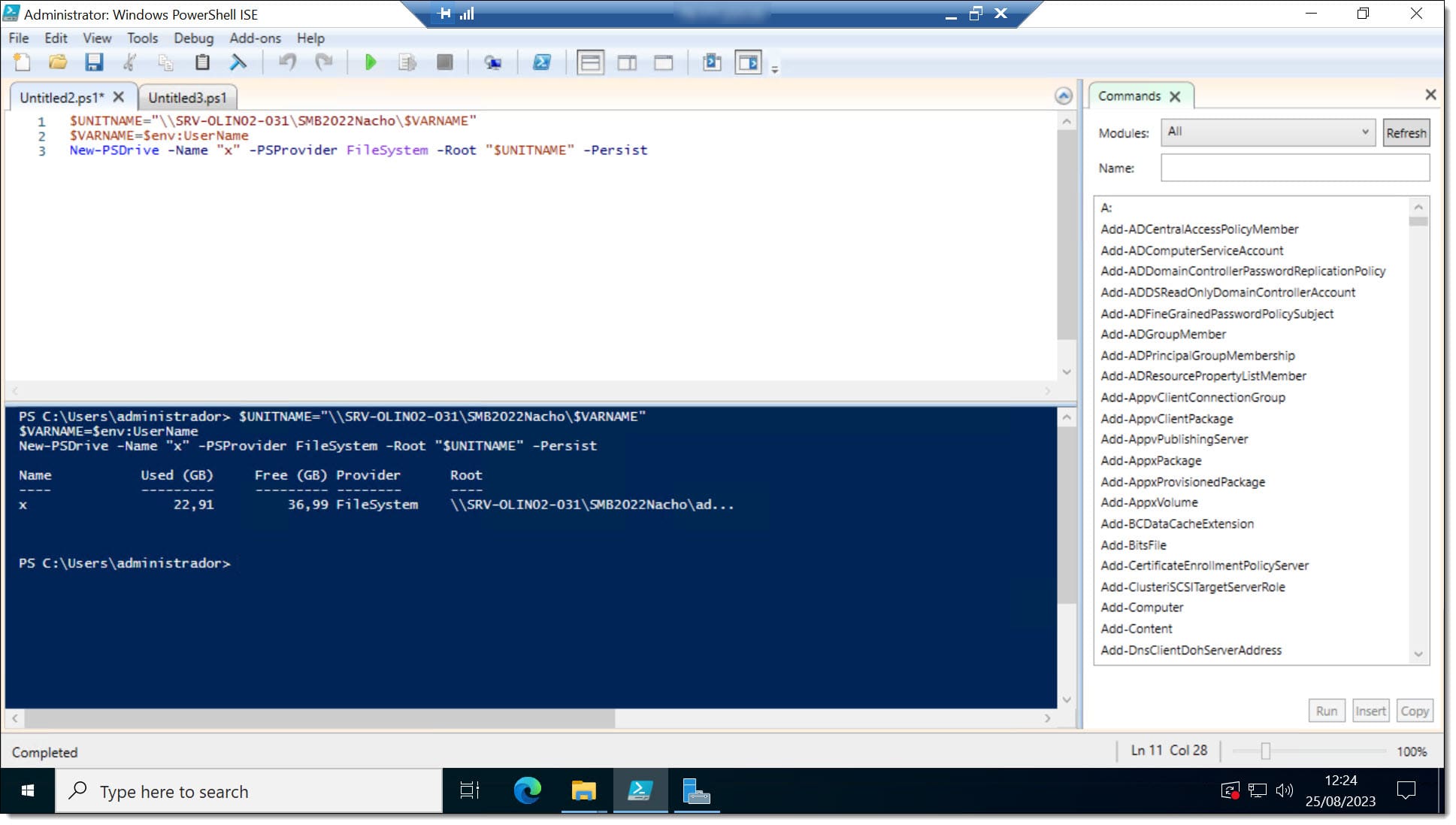
At this point, you have a solid, working script—or you can continue developing it with additional features and error handling.
Conclusions
As you can see in this article about how to map a network drive using a PowerShell script, we’ve created a simple yet powerful piece of code that connects to a shared resource and automatically maps the correct personal folder based on the logged-in username.
The user “jioller” will connect to a different location than “nacho”—the script handles this dynamically. As usual, this tutorial provides the foundation, but the customization possibilities are endless.
The script uses basic PowerShell cmdlets and should work on all current Windows systems. If you encounter any issues, feel free to contact us—we’re happy to help troubleshoot.
Want to learn more PowerShell scripts and tips? Check out our blog.
Thanks for reading!

August 25, 2023
