Sysadmin
Join us in this article to discover how to delete old files using PowerShell scripts that automatically remove files older than a specific creation date.
System administrators often need to clean up directories like temp folders, log files, swap drives, and more. Unfortunately, manual review and sorting can be time-consuming and error-prone.
In many cases, we need to delete files older than a certain age. This article provides a simple script you can run manually or integrate into a scheduled task that executes at regular intervals.
How to delete old files using PowerShell scripts?
The command structure is:
Get-ChildItem -Path "<PATH_TO_SCAN>" -Recurse |
Where-Object CreationTime -LT (Get-Date).AddDays(-<DAYS>) |
Remove-Item
Where:
Get-ChildItem: Lists files and directories in a path.-Path "<PATH_TO_SCAN>": Defines the starting path for scanning.-Recurse: Scans recursively through all subfolders.|: Pipes output to the next command.Where-Object CreationTime -LT (Get-Date).AddDays(-<DAYS>): Filters files older than the specified number of days.Remove-Item: Deletes matching files.
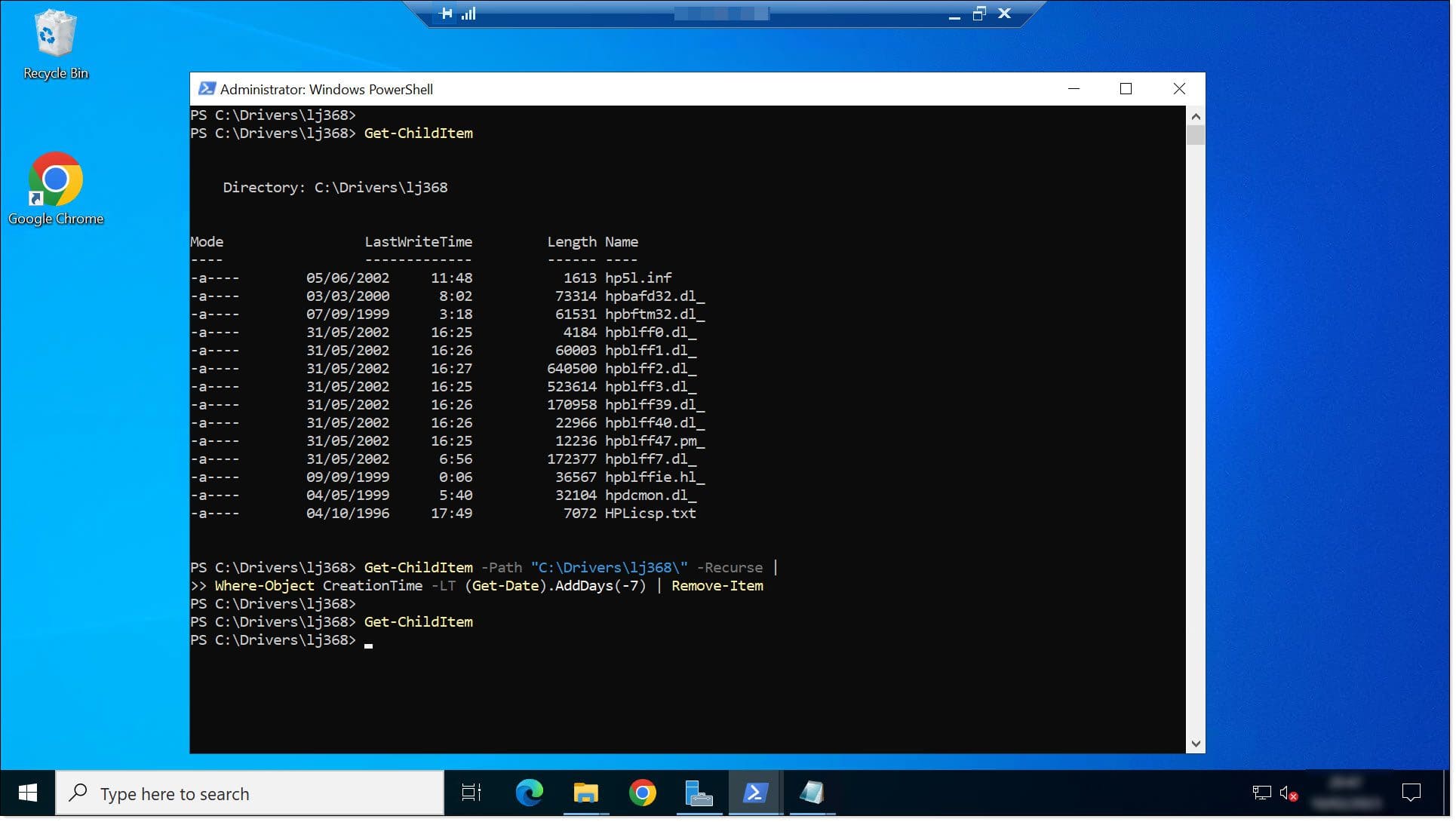
Example: Delete files older than 7 days from C:\Drivers\lj368\:
Get-ChildItem -Path "C:\Drivers\lj368\" -Recurse |
Where-Object CreationTime -LT (Get-Date).AddDays(-7) |
Remove-Item
This deletes files directly, but you might prefer to list them first or export to a file for review.
Quick cleanup: Delete old files with PowerShell
If you just want to run it without the details, use this command:
Get-ChildItem -Path "<PATH_TO_SCAN>" -Recurse |
Where-Object CreationTime -LT (Get-Date).AddDays(-<DAYS>) |
Remove-Item
Replace:
<PATH_TO_SCAN>: Your target folder path.<DAYS>: Number of days (numeric).
Run the one-liner and wait for completion.
Conclusions
As shown, deleting old files using PowerShell scripts lets you remove files older than a specified age efficiently. A few well-chained commands create a semi-automated solution (easily scheduled for full automation).
This works on all current Microsoft Windows systems using basic PowerShell cmdlets. If you encounter issues, contact us—we’re happy to help troubleshoot.
Learn more PowerShell scripts and tips on our blog.
Thanks for reading!

July 12, 2023
