How to configure and troubleshoot time issues in Windows Server?
How to troubleshoot time issues in Windows Server? Time services are far more useful and important than most people think. Some technicians may not pay much attention to them, probably because they have not yet experienced major issues in critical services caused by poor time synchronization.
What are time services?
Time services are responsible for ensuring that the time on our systems is synchronized with a central source, which is usually an external server from a trusted source.
Among other things, these services ensure that all servers and all client machines have the same time. This is especially critical in infrastructures running Active Directory Domain Services (AD DS), where a machine with a different time can cause issues and may display the message “The trust relationship between this workstation and the primary domain failed,” which every administrator has seen at some point in their professional life.
All computers, both servers and clients, that belong to a domain synchronize their time from the Domain Controller (DC) that acts as the PDC (Primary Domain Controller). However, we may encounter systems whose synchronization source has been changed for some reason, for example, to authenticate against another service or due to an operational error.
The only element in the domain that does not take its time from the PDC is the PDC itself, which, as the root of the domain forest, synchronizes its time from an external source.
When dealing with time issues and how to address them, we will distinguish between two different types:
On legacy systems. Systems such as Windows Server 2003, Windows Server 2008, or Windows Server 2012, which due to their age have older or more limited versions of PowerShell. On these systems, we will use solutions based on Windows “command” or registry keys, although some PowerShell commands may work.
On modern systems. Operating systems such as Windows Server 2016, Windows Server 2019, or Windows Server 2022. These include the latest versions of PowerShell, allowing us to work directly with PowerShell commands, although legacy “command” commands will also work.
Checking the status of the time service:
One of the first things we can do to check the status of the time services on our server is to review the registry configuration.
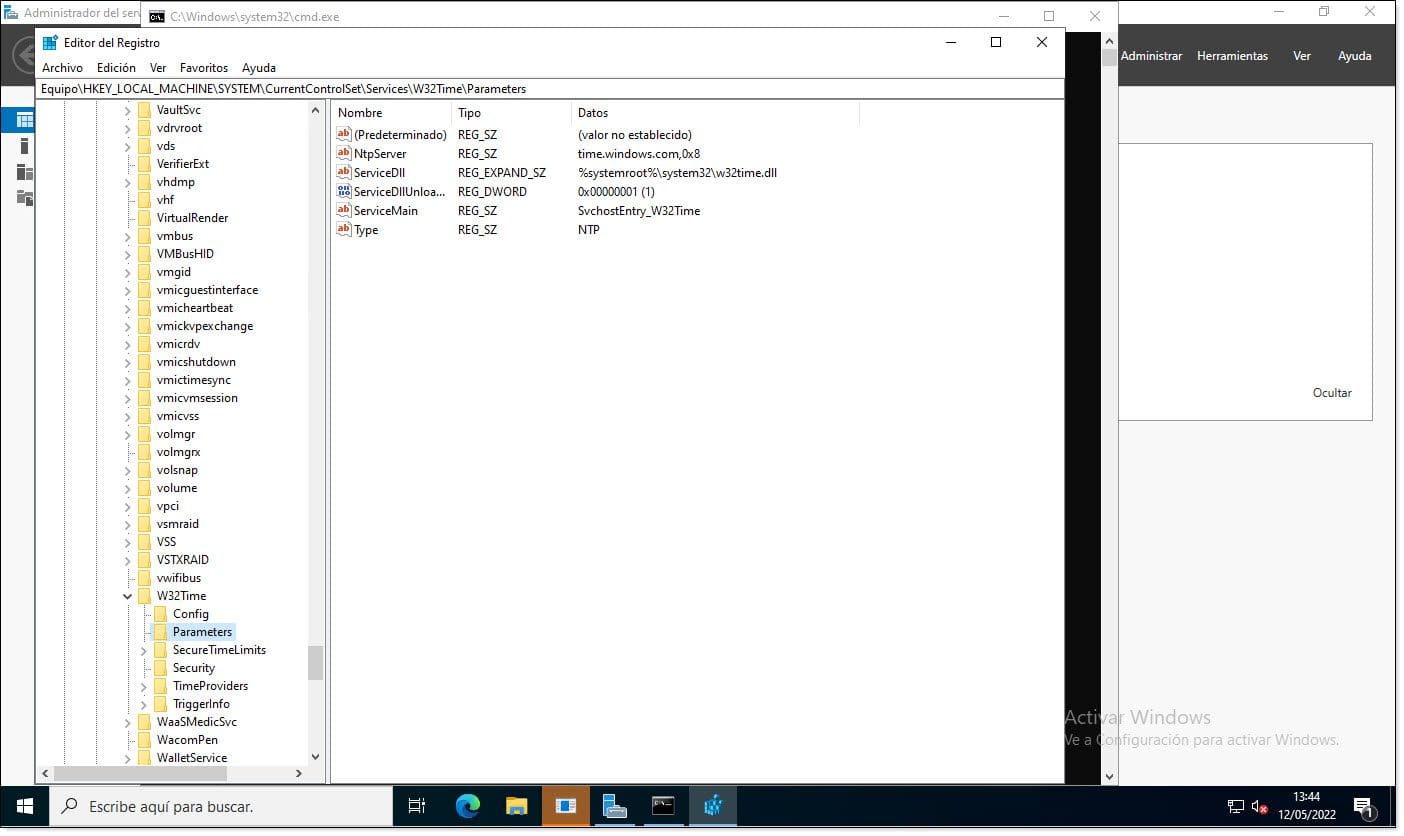
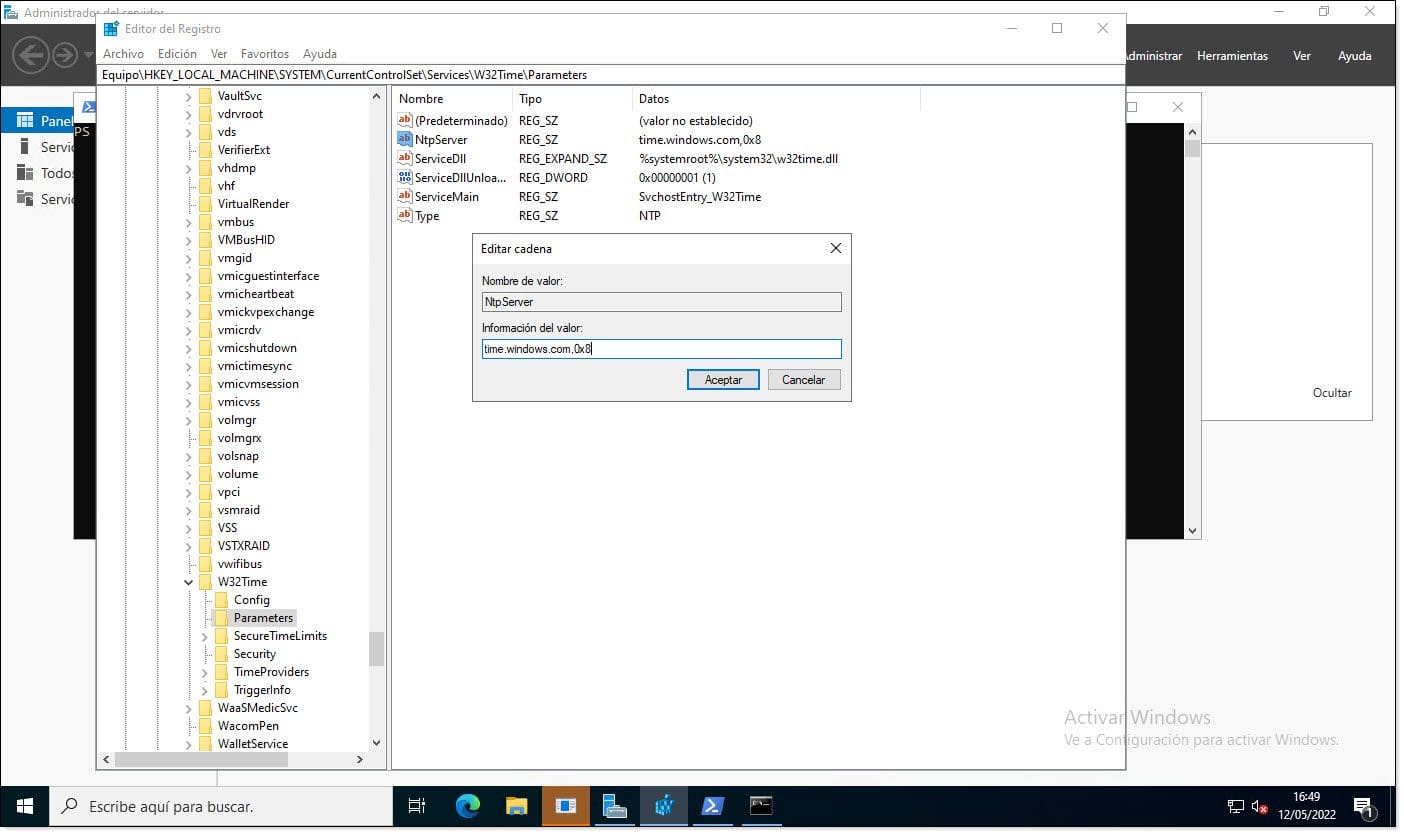
The registry configuration can be checked in several ways. The first and most traditional is to manually review the status, that is, by opening the Registry Editor (regedit.exe) and navigating the following path: HKEY_LOCAL_MACHINESYSTEMCurrentControlSetServicesW32TimeParametersWindows time service values in the Registry Editor
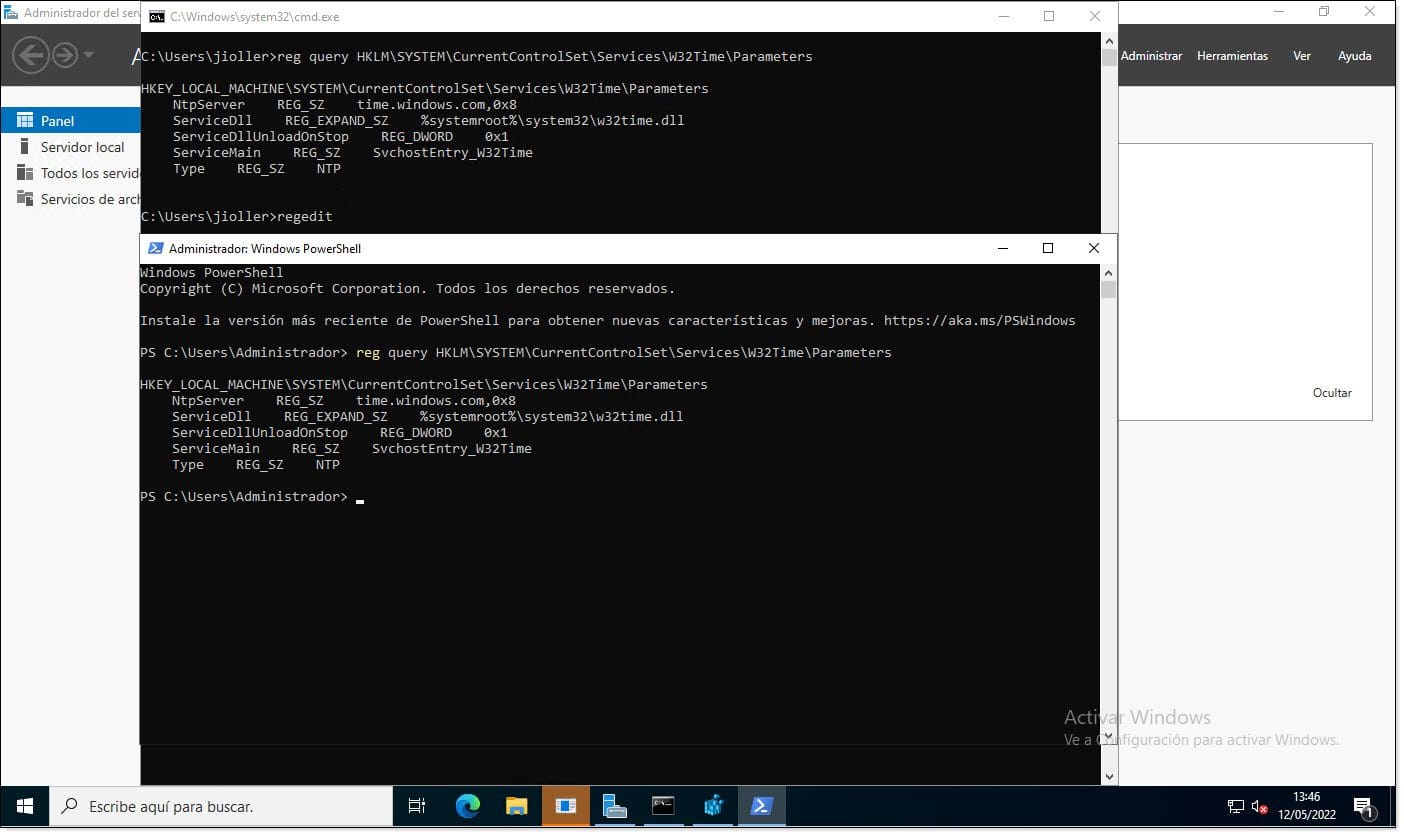
A faster way is to use the “reg query” command, which performs direct queries against the system registry. To do this, simply enter the following command at the command line, either in the classic Windows CMD or in PowerShell.
# reg query HKLMSYSTEMCurrentControlSetServicesW32TimeParameters
Comparison of Windows registry queries in CMD and PowerShell
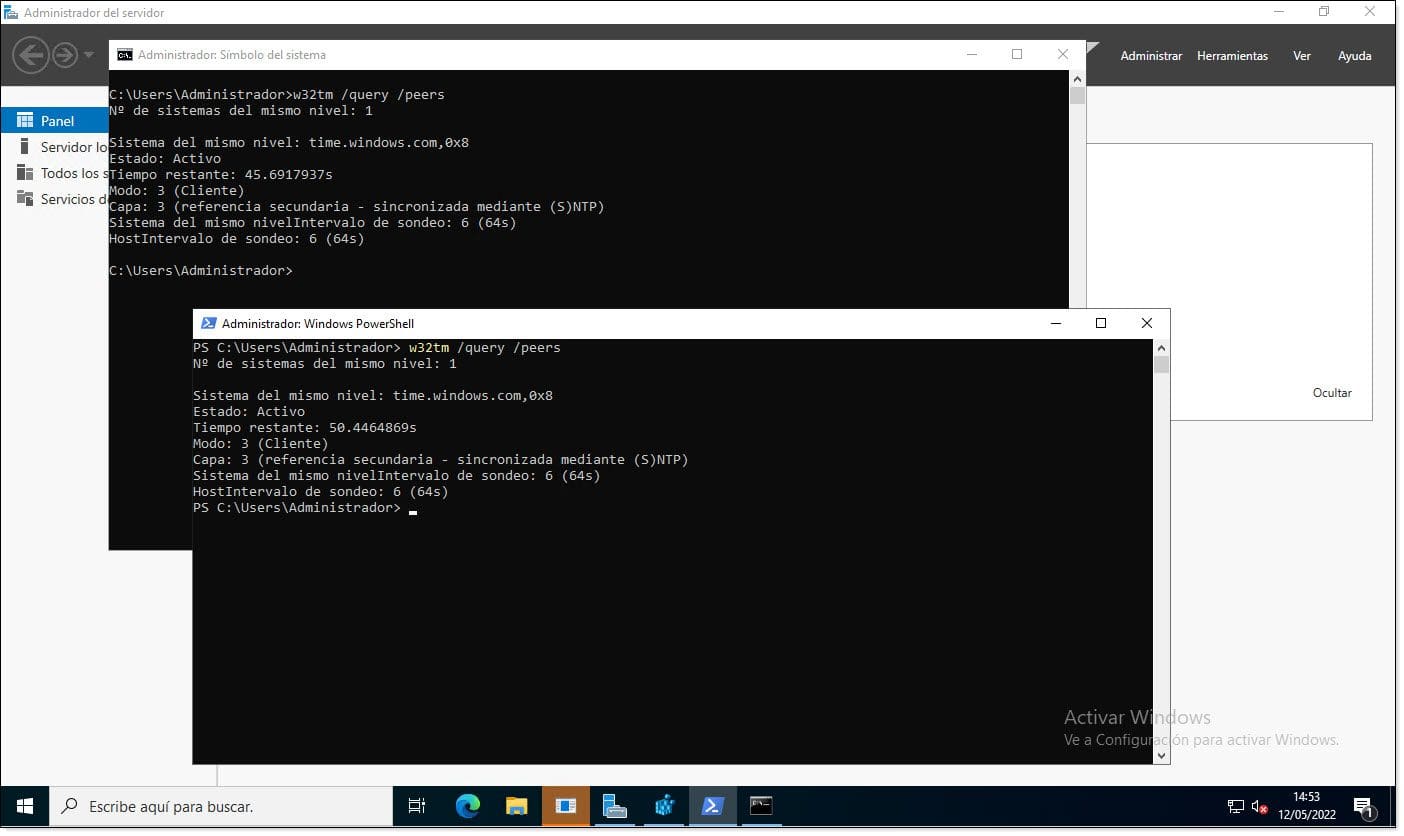
Another way to view the service status is by using the “w32tm /query /peers” command, which makes a direct query to the time service, asking it which servers it synchronizes with. Again, this command can be run from both the Windows command line and PowerShell.
Querying synchronization servers and time service status
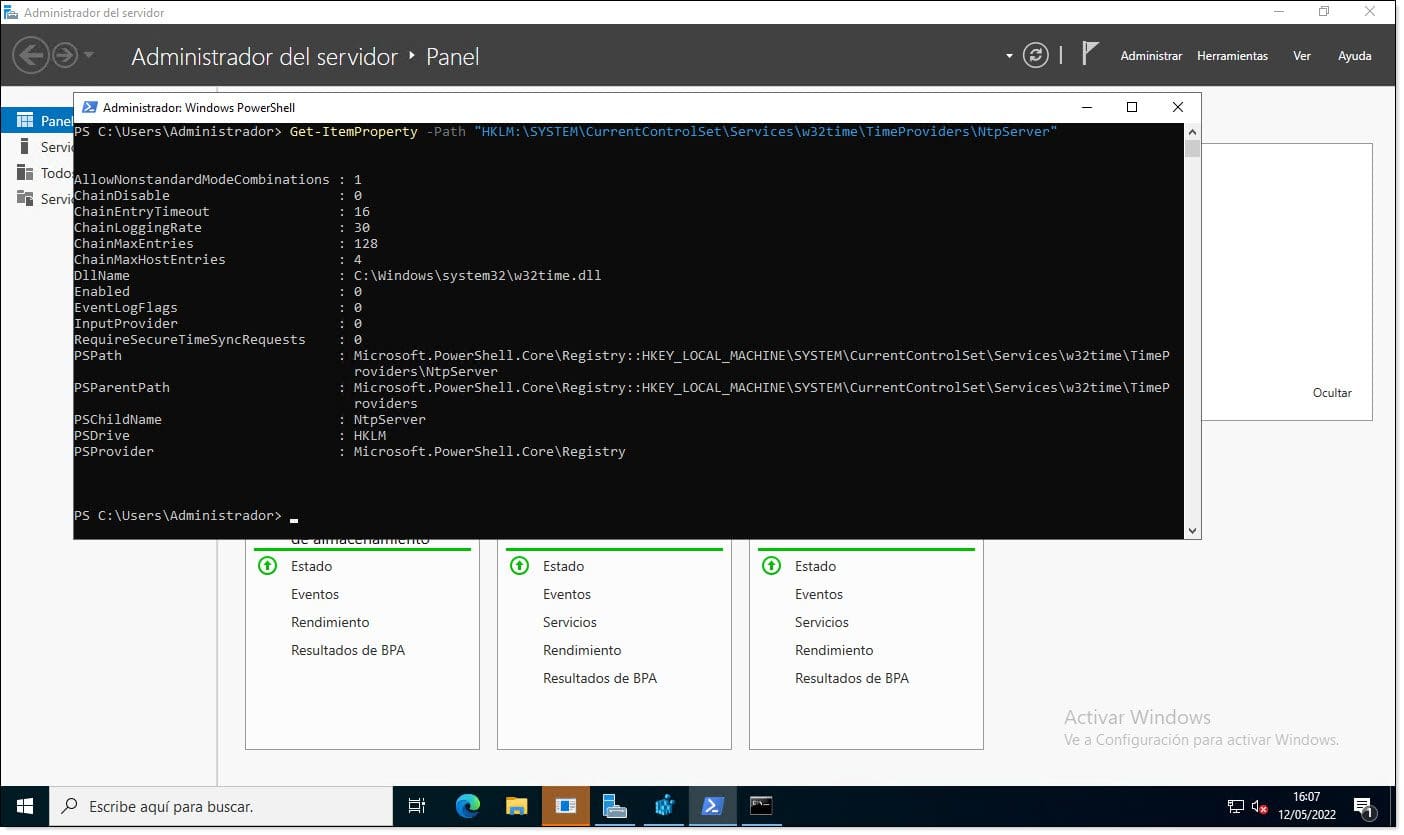
The final way to view the configuration and status is by using PowerShell directly, specifically the “Get-ItemProperty” command.
# Get-ItemProperty -Path “HKLM:SYSTEMCurrentControlSetServicesw32timeTimeProvidersNtpServer”
Querying time synchronization status from PowerShell
Starting and stopping time services:
Sometimes services end up in an indeterminate state—put simply, they get “stuck”—and restarting them is necessary to normalize their status, which is the most common solution.
As usual, there are several ways to fix these time issues, and here we will explain a couple of them.
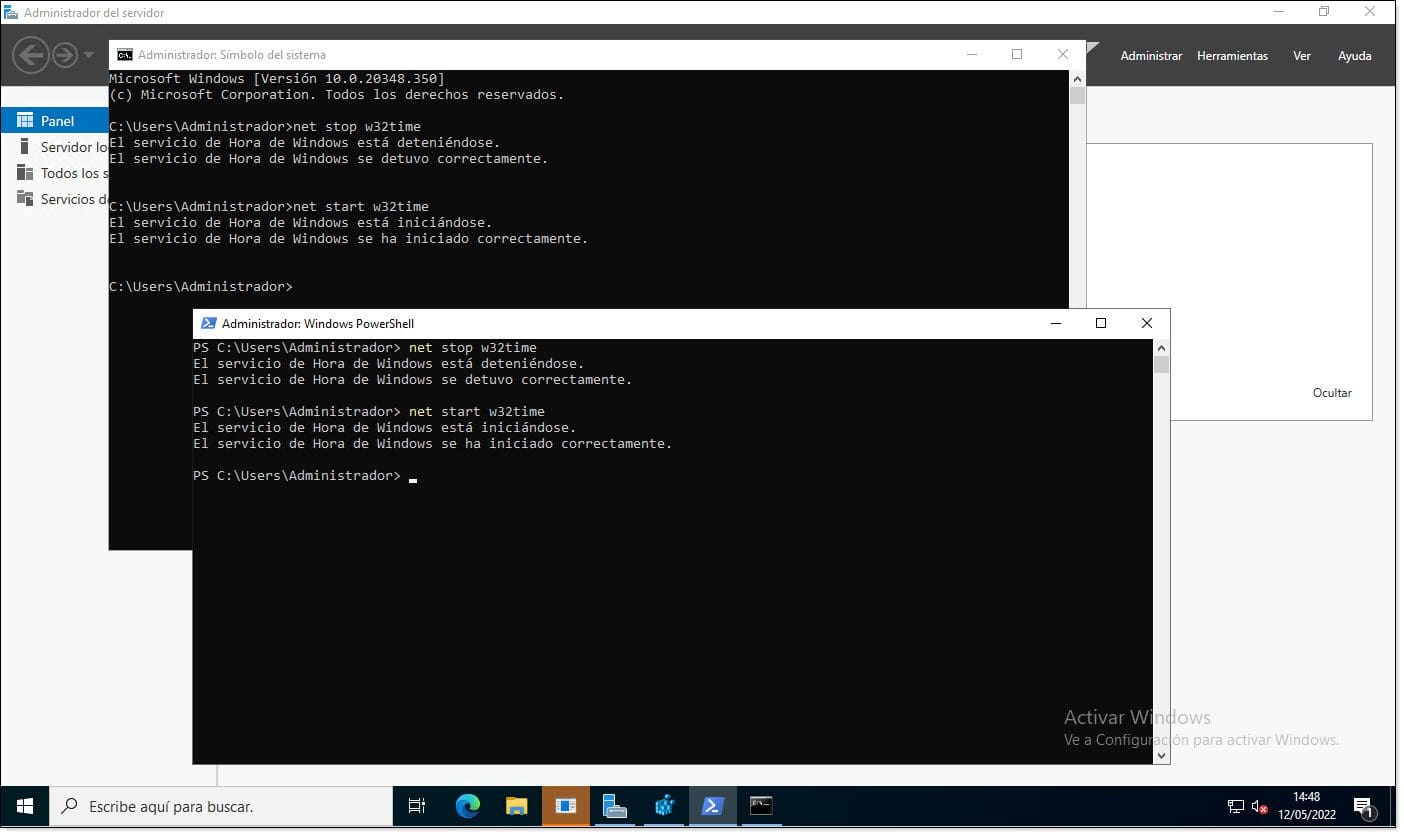
The first way is by using the “net” command, which has long accompanied Microsoft system administrators.
You can stop and start the service as follows:
# net stop w32time
# net start w32time
These commands can be executed from either CMD or PowerShell.
Restarting the time service using the “net” command
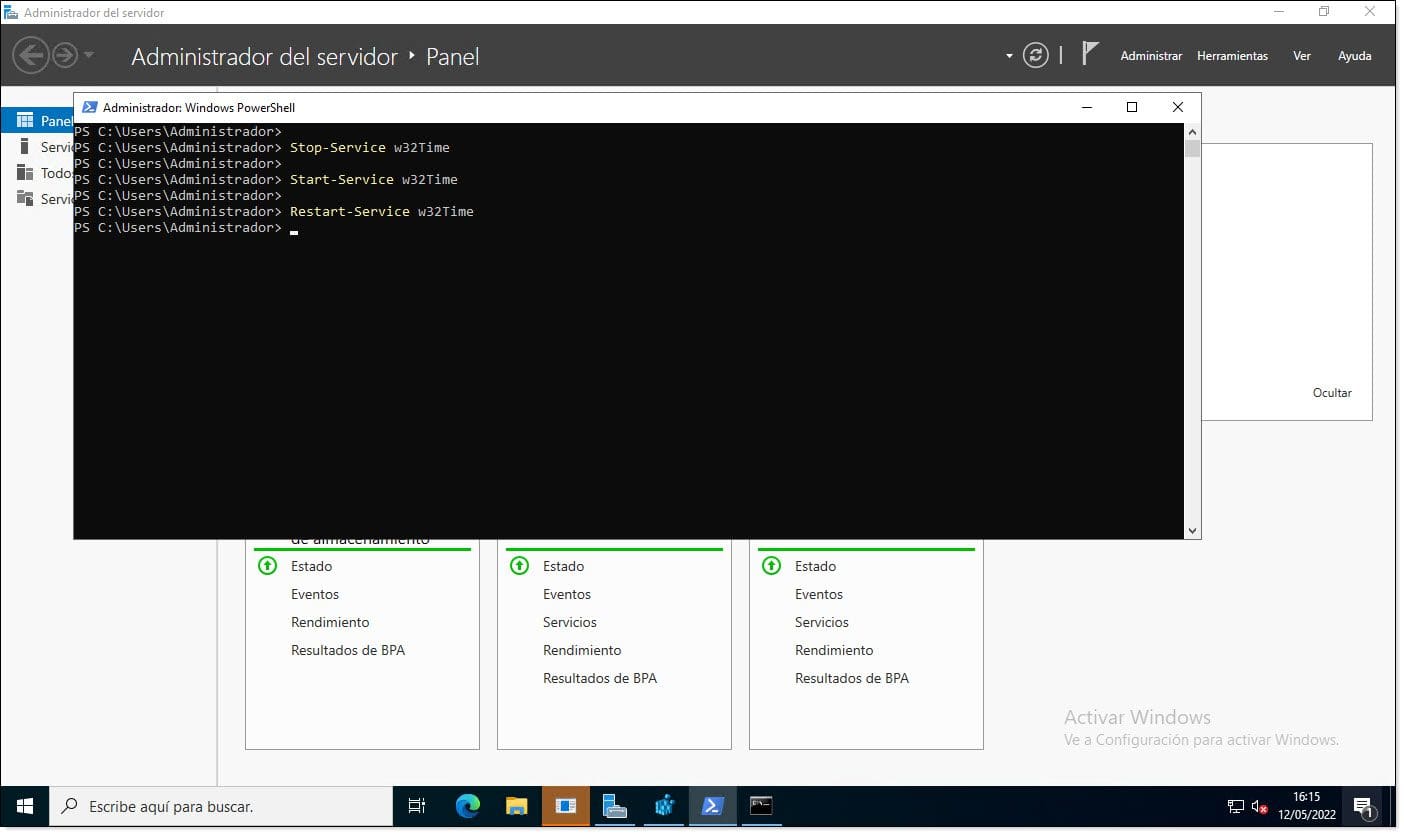
If you want to restart the time service from a system that supports PowerShell, you can use service management commands such as “Stop-Service”, “Start-Service”, or “Restart-Service”, executing directly:
# Restart-Service w32Time
Or
# Stop-Service w32Time
# Start-Service w32Time
Stopping, starting, and restarting the time service from PowerShell
Reconfiguring time services:
As expected, when configuring Windows Server time services, we can proceed in several ways:
We can directly modify registry keys manually, which can be very tedious, especially if multiple services need changes.
We can use a script to write values to the registry.
We can use legacy “command” commands.
We can use PowerShell commands on servers that support it.
Configuring the time service by manually editing the registry:
This is a process that, although I have done it more than once without issues, I would not recommend unless we are working on an old system where no other option is available.
If we want to edit the registry manually, we must start the Registry Editor (RegEdit) from Run, search for it in the Start menu, or browse to “C:Windows” and locate the executable, which is not something we usually do.
NOTE: Whenever reconfiguring the Windows registry, it is recommended to make a backup so it can be restored from Safe Mode if necessary.
Then, we must navigate to the branch where we want to make the changes, in this case “HKEY_LOCAL_MACHINESYSTEMCurrentControlSetServicesW32TimeConfig”, and enter them manually, with the risk of making mistakes.
The parameters to configure should be:
Where NtpServer=hora.rediris.es,0x1 contains the server address used for synchronization.
NOTE: In this case, a RedIris time server, “hora.rediris.es”, has been chosen, but there are countless servers available, such as those from Microsoft, Google, or government entities. To find them, simply search the internet for “NTP servers” or similar.Editing time configuration in the Windows registry
This same procedure can be made slightly more automated by creating a plain text file (typical Notepad) with the following content, which is identical to the previous step.
EGEDIT4
[HKEY_LOCAL_MACHINESYSTEMCurrentControlSetServicesW32TimeConfig]
«MaxNegPhaseCorrection»=dword:ffffffff
«MaxPosPhaseCorrection»=dword:00000e10
«AnnounceFlags»=dword:00000005
[HKEY_LOCAL_MACHINESYSTEMCurrentControlSetServicesW32TimeParameters]
«Type»=»NTP»
«NtpServer»=»time.windows.com,0x1»
[HKEY_LOCAL_MACHINESYSTEMCurrentControlSetServicesW32TimeTimeProviders]
«NtpServer»=dword:00000001
[HKEY_LOCAL_MACHINESYSTEMCurrentControlSetServicesW32TimeTimeProvidersNtpClient]
«SpecialPollInterval»=dword:00000384
[HKEY_LOCAL_MACHINESYSTEMCurrentControlSetServicesW32TimeTimeProvidersNtpServer]
«Enabled»=dword:00000001
The file must be saved with the “.reg” extension and then the “regedit” command must be run for the configuration to take effect.
# regedit /s ARCHIVO.reg
For example:
# regedit /s f:ntpconfig.reg
After this, the service or the system should be restarted to verify that everything is working correctly.
Registry configuration using commands:
A much simpler way is to use Windows “command” commands, the classic ones. The commands we will use are the classic time management commands, “net” and “w32tm”.
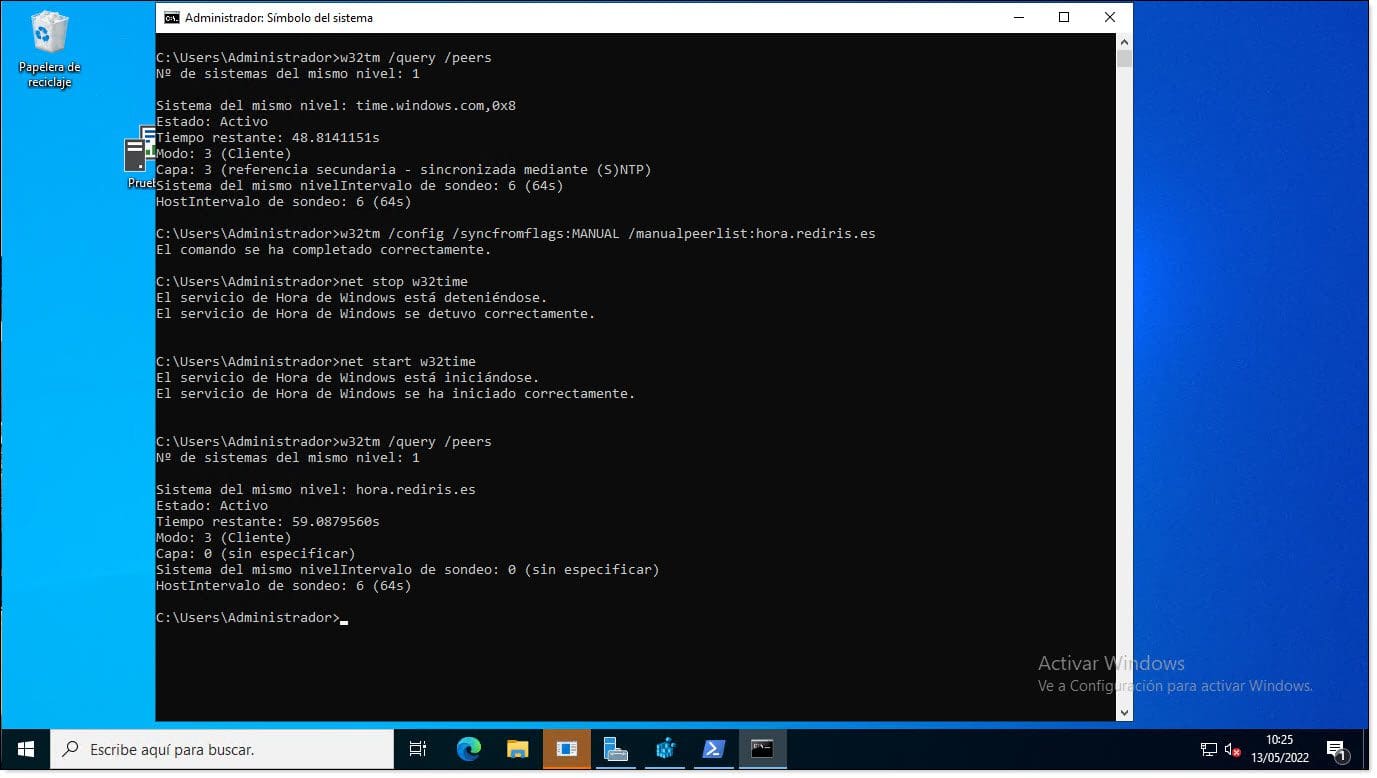
In this process, the first thing we should always do is check the status of the time service to see if it is running and where it is synchronizing from:
# w32tm /query /peers
Once done, we can verify that the server to be configured is reachable using a ping. When confirmed, we can run the following configuration command:
# w32tm /config /syncfromflags:MANUAL /manualpeerlist:SERVIDOR_NTP
Where SERVIDOR_NTP must be replaced with the server we want to synchronize with, for example “hora.rediris.es”.
# w32tm /config /syncfromflags:MANUAL /manualpeerlist:hora.rediris.es
NOTE: If you receive an error such as “Error: missing parameter : /syncfromflags” or similar, the issue may be due to a space after the “:”. This can occur in both “/syncfromflags:” and “/manualpeerlist:”.
After entering the new value, the change will not take effect unless the service is restarted, so the following commands must be executed:
# net stop w32time
# net start w32time
Finally, it is recommended to perform a new synchronization query to verify that the service is running correctly and where it is synchronizing time from:
# w32tm /query /peers
Configuring time using commands in CMD
With this, the service should now be correctly configured.
Registry configuration using PowerShell:
If you are running a modern system, the best option is to use PowerShell, as it is the most powerful console and one we should get used to using.
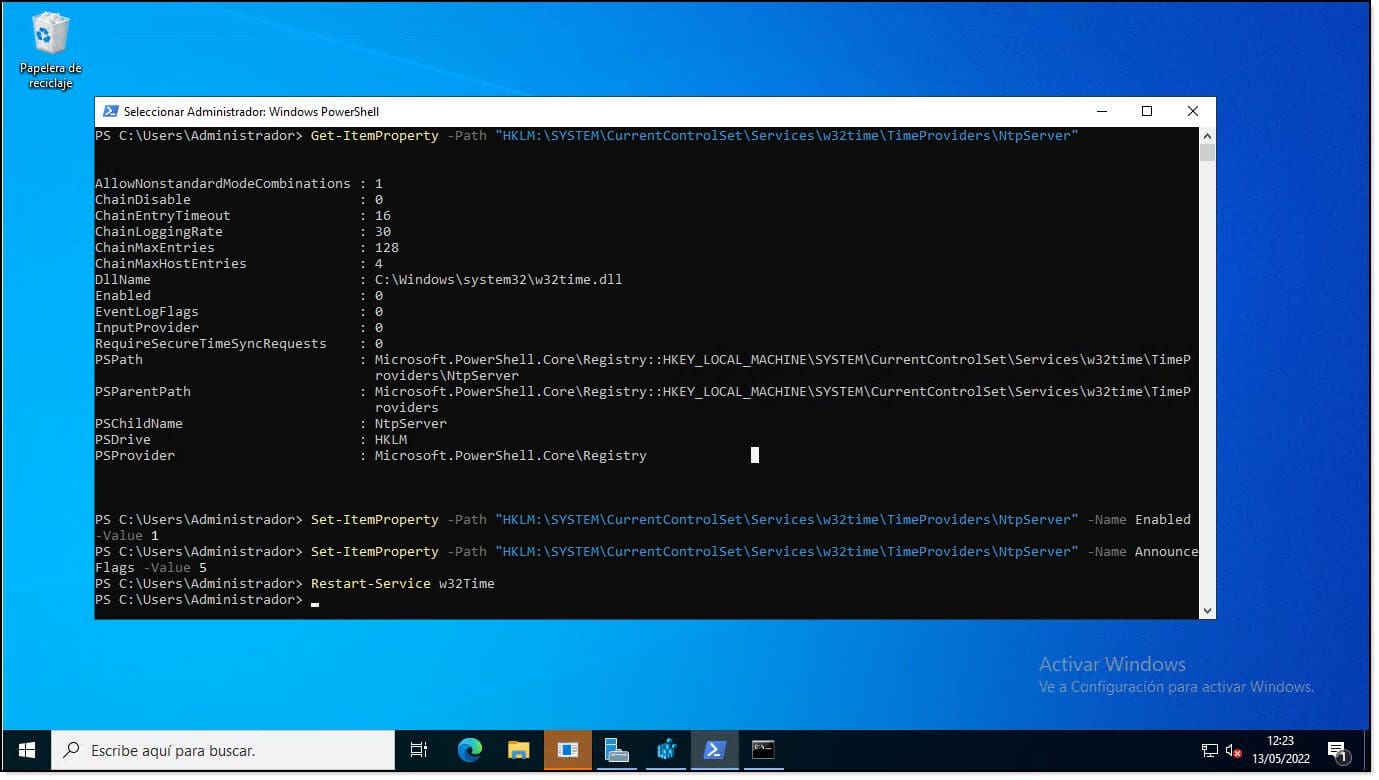
The first step is to check the Windows registry configuration for the time service, specifically using the “Get-ItemProperty” command.
# Get-ItemProperty -Path “HKLM:SYSTEMCurrentControlSetServicesw32timeTimeProvidersNtpServer”
If the service is not enabled, it must be enabled using the “Set-ItemProperty” command.
# Set-ItemProperty -Path “HKLM:SYSTEMCurrentControlSetServicesw32timeTimeProvidersNtpServer” -Name “Enabled” -Value 1
# Set-ItemProperty -Path “HKLM:SYSTEMCurrentControlSetServicesw32timeTimeProvidersNtpServer” -Name “AnnounceFlags” -Value 5
Finally, restart the service using the “Restart-Service” command.
# Restart-Service w32Time
With this, the service will be configured.
Configuring time using PowerShell commands
Common time service issues:
A fairly common issue is encountering systems that have lost trust due to a failure of the motherboard battery.
Therefore, when we encounter this type of issue, the first thing to check is the BIOS time. If an unusual time such as “01/01/2000” appears, the battery should be replaced, the BIOS time reset, and the system restarted to see if the issue is resolved, which is usually the case.
Another classic source of time service issues is firewalls with very restrictive rules. It is recommended to check whether UDP port 123 is open and, if not, to open it.
On domain-joined systems, there is also the possibility that the machine has entered an unstable state and needs to be removed from the domain and rejoined.
Most other errors are usually related to poor time service configuration, which can be resolved by reconfiguring the service as shown in the previous sections.
Conclusions on how to troubleshoot time issues:
As we have seen, having our systems’ time properly configured—maintaining not only correct settings but also consistency between them—is a top priority. Therefore, we should regularly review configurations, monitor them if possible, and know how to troubleshoot common time issues that may arise.
Throughout this article, we have discussed the importance of the service, some of the most common problems, and how to check its status, restart it, or even reconfigure it.
We hope this information is useful if you encounter any issues of this type. Thank you for reading!
Juan Ignacio Oller Aznar
December 15, 2025
You can unsubscribe from these communications at any time. See our Privacy Policy
You can unsubscribe from these communications at any time. See our Privacy Policy
You can unsubscribe from these communications at any time. See our Privacy Policy
You can unsubscribe from these communications at any time. See our Privacy Policy
Manage consent
To provide the best experiences, we use technologies like cookies to store and/or access device information. Consent to these technologies will allow us to process data such as browsing behavior and unique IDs on this site. If you do not consent, or if you withdraw your consent, this may negatively impact certain features and functionality.
Functional
Always active
Storage or technical access is strictly necessary for the legitimate purpose of enabling the use of a specific service explicitly requested by the subscriber or user, or for the sole purpose of carrying out the transmission of a communication over an electronic communications network.
Preferencias
El almacenamiento o acceso técnico es necesario para la finalidad legítima de almacenar preferencias no solicitadas por el abonado o usuario.
Statistics
Storage or technical access that is used exclusively for statistical purposes.El almacenamiento o acceso técnico que se utiliza exclusivamente con fines estadísticos anónimos. Sin un requerimiento, el cumplimiento voluntario por parte de tu proveedor de servicios de Internet, o los registros adicionales de un tercero, la información almacenada o recuperada sólo para este propósito no se puede utilizar para identificarte.
Marketing
Technical storage or access is necessary to create user profiles for the purpose of targeting advertising, or to track the user across a website or across multiple websites for similar marketing purposes.