Cloud and Systems
Check out this article to learn how to configure network settings using a PowerShell script—a much faster way to set up both client machines and servers.
This approach simplifies deploying multiple systems autonomously. This is a basic version that can be expanded for even more automated network configurations.
How to configure network settings using PowerShell?
Always test commands individually on a test server or client first to understand exactly what they do—even when using proven scripts from trusted sources.
This script configures two main elements:
- Static IP configuration including:
- IP address
- Network prefix
- Default gateway
- DNS server
- Computer name change
Before running the script, determine your network values and replace these example values:
<IP Address> = 192.168.1.101
<Network Prefix> = 24
<Default Gateway> = 192.168.1.1
The basic IP command becomes:
New-NetIPAddress -IPAddress 192.168.1.101 -PrefixLength 24 -DefaultGateway 192.168.1.1For reusability, convert these into variables:
$direccionip = "192.168.1.101"
$prefijodered = "24"
$puertadeenlacegw = "192.168.1.1"
$interfaz = (Get-NetAdapter).ifIndex
New-NetIPAddress -IPAddress $direccionip -PrefixLength $prefijodered -InterfaceIndex $interfaz -DefaultGateway $puertadeenlacegw
Create a .ps1 file named configuracionred.ps1 with your script.
To also change the computer name (recommended for organized infrastructure), add:
$nombre = "PC-Nacho"
Rename-Computer -NewName $nombre -Force
The complete unified script looks like this:
$direccionip = "192.168.1.101"
$prefijodered = "24"
$puertadeenlacegw = "192.168.1.1"
$nombre = "PC-Nacho"
$interfaz = (Get-NetAdapter).ifIndex
New-NetIPAddress -IPAddress $direccionip -PrefixLength $prefijodered -InterfaceIndex $interfaz -DefaultGateway $puertadeenlacegw
Rename-Computer -NewName $nombre -Force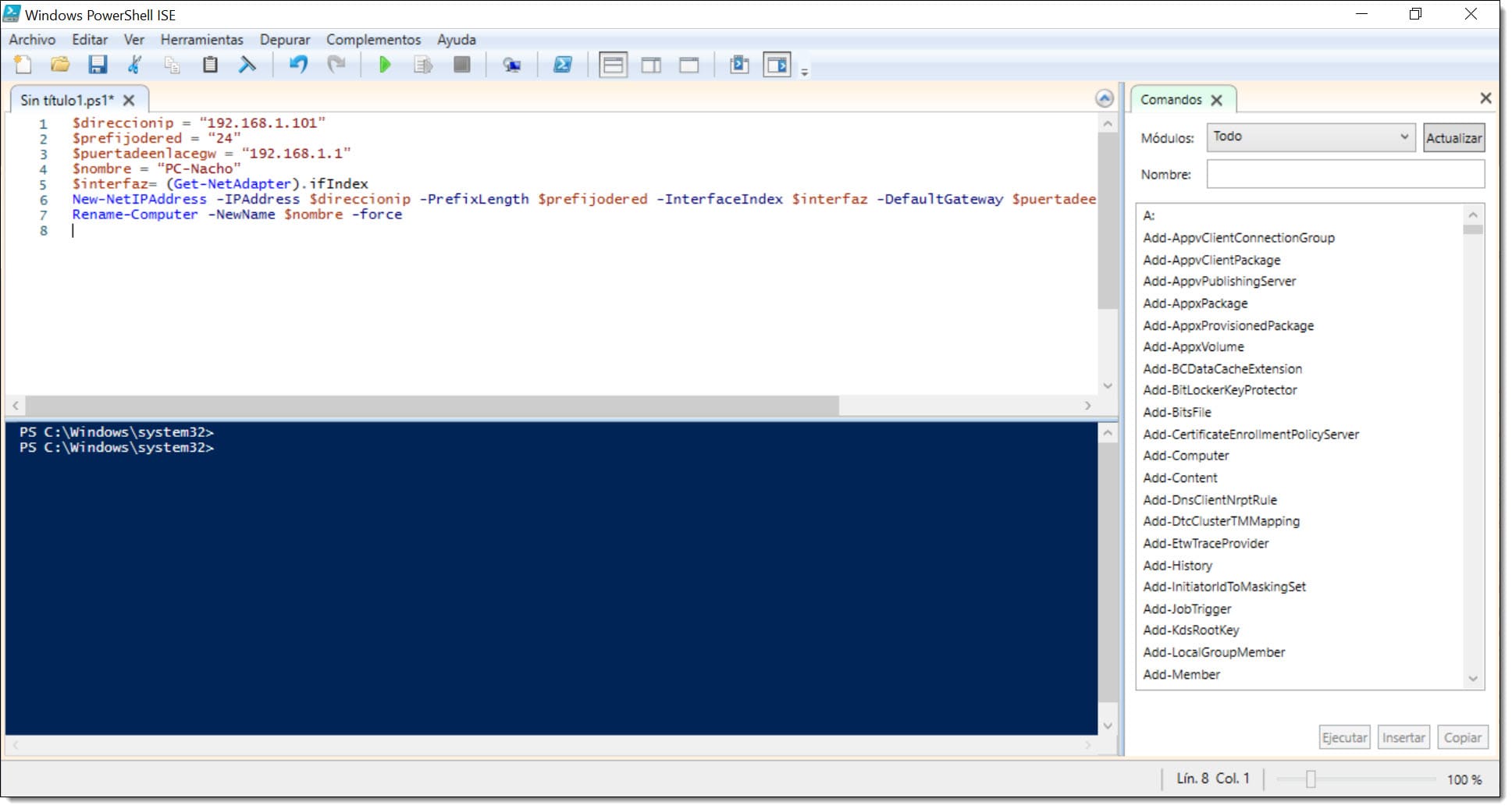
Conclusions and Next Steps
This article demonstrates how to configure network settings using a PowerShell script, automating common network tasks with simple PowerShell commands.
After running the script, you’ll have configured:
- IP address
- Network prefix
- Default gateway
- DNS server
- Computer name
The entire process takes just a few steps. Learn more PowerShell automation techniques on our blog.
If you run into any issues, don’t hesitate to contact us—we’re here to help troubleshoot.
Thank you for your trust!

August 18, 2023
